
4.5 KiB
uid
| uid |
|---|
| addressables-api-initialize-async |
Addressables initialization
The Addressables system initializes itself at runtime the first time you load an Addressable or make another call to an Addressable API. Call Addressables.InitializeAsync to initialize Addressables earlier. This method does nothing if initialization has already happened.
Initialization tasks
The initialization operation performs the following tasks:
- Sets up the
ResourceManagerand theResourceLocators. - Loads configuration data that Addressables creates from StreamingAssets.
- Executes any initialization object operations.
- Loads the content catalog. By default, Addressables first checks for updates to the content catalog and downloads a new catalog if available.
The following Addressables settings can change initialization behavior:
- Only update catalogs manually: Addressables won't automatically check for an updated catalog. Refer to Updating catalogs for information about manually updating catalogs.
- Build Remote Catalog: Addressables won't try to load remote content without a remote catalog.
- Custom certificate handler: Identify a custom certificate handler if you need one to access a remote asset hosting service.
- Initialization object list: Add the
IObjectInitializationDataProviderScriptableObject to your application that Addressables invokes during the initialization operation.
Set the following runtime properties before the initialization operation starts:
- Custom URL transform function.
- ResourceManager exception handler.
- Static properties used for any custom runtime placeholders in Profile variables.
Initialization objects
You can attach objects to the Addressable Assets settings and pass them to the initialization process at runtime. For example, you can create a CacheInitializationSettings object to initialize Unity's Cache settings at runtime.
To create your own types of initialization object, create a ScriptableObject that implements the IObjectInitializationDataProvider interface. Use this object to create the ObjectInitializationData asset that Addressables includes with your the runtime data.
Cache initialization objects
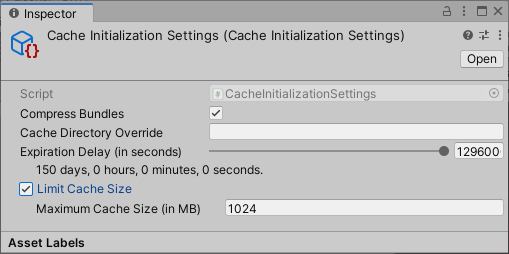
Use a CacheInitializationSettings object to initialize Unity's Cache settings at runtime.
To specify the cache initialization settings that the Addressables system uses:
-
Create a CacheInitializationSettings asset (menu: Assets > Addressables > Initialization > Cache Initialization Settings).
-
Select the new asset file in the Project panel to view the settings in the Inspector
-
Adjust the settings as desired.
-
Open the Addressables Settings Inspector (menu: Window > Asset Management > Addressables > Settings).
-
In the Initialization Objects section of the Inspector, click the + button to add a new object to the list.
-
Select the CacheInitializationSettings asset in the File dialog and click Open.
-
The cache settings object is added to the list.
When Addressables initializes at runtime, it applies these settings to the default Unity Cache. The settings apply to all AssetBundles in the default cache, not just those downloaded by the Addressables system. Refer to Caching for more information about the Unity cache system.
Tip
Android applications built with Unity 2020.1 or earlier, or running on Android 9 or earlier can only play videos from uncompressed AssetBundles. To disable recompression of the cache, use a
CacheInitializationSettingsobject by disabling the Compress Bundles option.