
28 KiB
uid
| uid |
|---|
| urp-docfx-create-custom-renderer-feature |
Example of a complete Scriptable Renderer Feature
This section describes how to create a complete Scriptable Renderer Feature for a URP Renderer.
This walkthrough contains the following sections:
- Overview of this example implementation
- Create example Scene and GameObjects
- Create a scriptable Renderer Feature and add it to the Universal Renderer
- Create the scriptable Render Pass
- Implement the settings for the custom render pass
- Implement the render passes
- Enqueue the render pass in the custom renderer feature
- Implement the volume component
- All complete code for the scripts in this example
- The custom shader for the blur effect
Overview of this example implementation
The example workflow on this page implements a custom Renderer Feature that uses custom Render Passes to add a blur effect to the camera output.
The implementation consists of the following parts:
-
A
ScriptableRendererFeatureinstance that enqueues aScriptableRenderPassinstance every frame. -
A
ScriptableRenderPassinstance that performs the following steps:-
Creates a temporary render texture using the
RenderTextureDescriptorAPI. -
Applies two passes of the custom shader to the camera output using the
TextureHandleand theBlitterAPI.
-
Create example Scene and GameObjects
To set your project up for this example workflow:
-
Create a new Scene.
-
Create two GameObjects: a Cube GameObject called
Cube, and a Sphere GameObject calledSphere. -
Create two Materials with a shader that lets you specify the base color (for example, the
Universal Render Pipeline/Litshader). Call the MaterialsBlueandRed, and set the base colors of the Materials to blue and red respectively. -
Assign the
RedMaterial to the cube and theBlueMaterial to the sphere. -
Position the camera so that it has the cube and the sphere in its view.
-
In the URP Asset, set the property Quality > Anti Aliasing (MSAA) to Disabled. The purpose of this step is to simplify the example implementation.
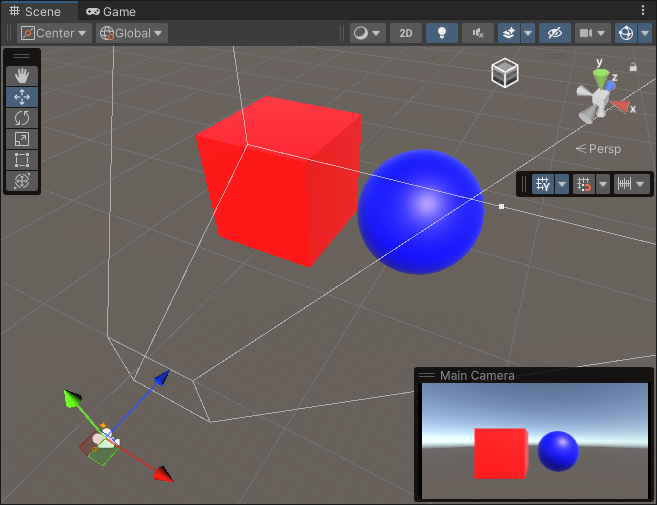
The sample scene should look like the following image:
Create a scriptable Renderer Feature and add it to the Universal Renderer
-
Create a new C# script and name it
BlurRendererFeature.cs. -
In the script, remove the code that Unity inserted in the
BlurRendererFeatureclass. -
Add the following
usingdirective:using UnityEngine.Rendering.Universal; -
Create the
BlurRendererFeatureclass that inherits from the ScriptableRendererFeature class.public class BlurRendererFeature : ScriptableRendererFeature -
In the
BlurRendererFeatureclass, implement the following methods:-
Create: Unity calls this method on the following events:-
When the Renderer Feature loads the first time.
-
When you enable or disable the Renderer Feature.
-
When you change a property in the inspector of the Renderer Feature.
-
-
AddRenderPasses: Unity calls this method every frame, once for each camera. This method lets you injectScriptableRenderPassinstances into the scriptable Renderer.
-
Now you have the custom BlurRendererFeature Renderer Feature with its main methods.
Below is the complete code for this step.
using System.Collections;
using System.Collections.Generic;
using UnityEngine;
using UnityEngine.Rendering.Universal;

public class BlurRendererFeature : ScriptableRendererFeature
{
    public override void Create()
    {

    }

    public override void AddRenderPasses(ScriptableRenderer renderer,
        ref RenderingData renderingData)
    {

    }
}
Add the Renderer Feature to the the Universal Renderer asset
Add the Renderer Feature you created to the the Universal Renderer asset. For information on how to do this, refer to the page How to add a Renderer Feature to a Renderer.
Create the scriptable Render Pass
This section demonstrates how to create a scriptable Render Pass and enqueue its instance into the scriptable Renderer.
-
Create a new C# script and name it
BlurRenderPass.cs. -
In the script, remove the code that Unity inserted in the
BlurRenderPassclass. Add the followingusingdirective:using UnityEngine.Rendering; using UnityEngine.Rendering.RenderGraphModule; using UnityEngine.Rendering.Universal; -
Create the
BlurRenderPassclass that inherits from the ScriptableRenderPass class.public class BlurRenderPass : ScriptableRenderPass -
Add the
RecordRenderGraphmethod to the class. This method adds and configures render passes in the render graph. This process includes declaring render pass inputs and outputs, but does not include adding commands to command buffers. Unity calls this method every frame, once for each camera.public override void RecordRenderGraph(RenderGraph renderGraph, ContextContainer frameData) { }
Below is the complete code for the BlurRenderPass.cs file from this section.
using UnityEngine.Rendering;
using UnityEngine.Rendering.RenderGraphModule;
using UnityEngine.Rendering.Universal;
public class BlurRenderPass : ScriptableRenderPass
{
public override void RecordRenderGraph(RenderGraph renderGraph, ContextContainer frameData)
{ }
}
Implement the settings for the custom render pass
This section demonstrates how to implement the settings for the custom blur render pass.
-
The Renderer Feature in this example uses the shader that performs the blur horizontally in one pass, and vertically in another pass. To let users control the blur value for each pass, add the following
BlurSettingsclass to theBlurRendererFeature.csscript.[Serializable] public class BlurSettings { [Range(0,0.4f)] public float horizontalBlur; [Range(0,0.4f)] public float verticalBlur; } -
In the
BlurRendererFeatureclass, declare the following fields:[SerializeField] private BlurSettings settings; [SerializeField] private Shader shader; private Material material; private BlurRenderPass blurRenderPass; -
In the
BlurRenderPassclass, add the fields for the settings, the Material, and the constructor that uses those fields.private BlurSettings defaultSettings; private Material material; public BlurRenderPass(Material material, BlurSettings defaultSettings) { this.material = material; this.defaultSettings = defaultSettings; } -
In the
BlurRenderPassclass, add theRenderTextureDescriptorfield and initialize it in the constructor. TheRenderTextureDescriptorclass lets you specify the properties of a render texture, such as the width, height, and format.using UnityEngine; private RenderTextureDescriptor blurTextureDescriptor; public BlurRenderPass(Material material, BlurSettings defaultSettings) { this.material = material; this.defaultSettings = defaultSettings; blurTextureDescriptor = new RenderTextureDescriptor(Screen.width, Screen.height, RenderTextureFormat.Default, 0); } -
In the
BlurRenderPassclass, declare thePassDataclass for storing the render pass input data. TheRecordRenderGraphmethod populates the data and the render graph passes it as a parameter to the rendering function. TheTextureHandlefield stores the reference to the temporary input texture.private class PassData { internal TextureHandle src; internal Material material; } -
In the
RecordRenderGraphmethod, create the variable for storing theUniversalResourceDatainstance from theframeDataparameter.UniversalResourceDatacontains all the texture references used by URP, including the active color and depth textures of the camera.UniversalResourceData resourceData = frameData.Get<UniversalResourceData>(); -
Declare the variables for interacting with the shader properties.
private static readonly int horizontalBlurId = Shader.PropertyToID("_HorizontalBlur"); private static readonly int verticalBlurId = Shader.PropertyToID("_VerticalBlur"); private const string k_BlurTextureName = "_BlurTexture"; private const string k_VerticalPassName = "VerticalBlurRenderPass"; private const string k_HorizontalPassName = "HorizontalBlurRenderPass"; -
In the
RecordRenderGraphmethod, declare theTextureHandlefields to store the references to the input and the output textures.CreateRenderGraphTextureis a helper method that calls theRenderGraph.CreateTexturemethod.TextureHandle srcCamColor = resourceData.activeColorTexture; TextureHandle dst = UniversalRenderer.CreateRenderGraphTexture(renderGraph, blurTextureDescriptor, k_BlurTextureName, false); -
In the
BlurRenderPassclass, implement theUpdateBlurSettingsmethod that updates the shader values.private void UpdateBlurSettings() { if (material == null) return; // Use the Volume settings or the default settings if no Volume is set. var volumeComponent = VolumeManager.instance.stack.GetComponent<CustomVolumeComponent>(); float horizontalBlur = volumeComponent.horizontalBlur.overrideState ? volumeComponent.horizontalBlur.value : defaultSettings.horizontalBlur; float verticalBlur = volumeComponent.verticalBlur.overrideState ? volumeComponent.verticalBlur.value : defaultSettings.verticalBlur; material.SetFloat(horizontalBlurId, horizontalBlur); material.SetFloat(verticalBlurId, verticalBlur); } -
In the
RecordRenderGraphmethod, add the variable for storing theUniversalCameraDatadata, and set theRenderTextureDescriptorvalues using that data.UniversalCameraData cameraData = frameData.Get<UniversalCameraData>(); // The following line ensures that the render pass doesn't blit // from the back buffer. if (resourceData.isActiveTargetBackBuffer) return; // Set the blur texture size to be the same as the camera target size. blurTextureDescriptor.width = cameraData.cameraTargetDescriptor.width; blurTextureDescriptor.height = cameraData.cameraTargetDescriptor.height; blurTextureDescriptor.depthBufferBits = 0; -
In the
RecordRenderGraphmethod, add the function to continuously update the blur settings in the material.// Update the blur settings in the material UpdateBlurSettings(); // This check is to avoid an error from the material preview in the scene if (!srcCamColor.IsValid() || !dst.IsValid()) return;
Implement the render passes
-
In the
RecordRenderGraphmethod, using thebuildervariable, add the render pass for the vertical blur. TheSetRenderFuncmethod sets the rendering function for the render pass. In this example, the function blits the camera color to the render graph texture, using the first shader pass.// Vertical blur pass using (var builder = renderGraph.AddRasterRenderPass<PassData>(k_VerticalPassName, out var passData)) { // Configure pass data passData.src = srcCamColor; passData.material = material; // Configure render graph input and output builder.UseTexture(passData.src); builder.SetRenderAttachment(dst, 0); // Blit from the camera color to the render graph texture, // using the first shader pass. builder.SetRenderFunc((PassData data, RasterGraphContext context) => ExecutePass(data, context, 0)); }The
BlitTexturemethod uses them_ScaleBiasargument. add it in theBlurRenderPassclass.private Vector4 m_ScaleBias = new Vector4(1f, 1f, 0f, 0f); -
In the
RecordRenderGraphmethod, using thebuildervariable, add the render pass for the horizontal blur. This pass uses the output of the previous pass as its input. Refer to the complete shader code for the implementation details.// Horizontal blur pass using (var builder = renderGraph.AddRasterRenderPass<PassData>(k_HorizontalPassName, out var passData)) { // Configure pass data passData.src = dst; passData.material = material; // Use the output of the previous pass as the input builder.UseTexture(passData.src); // Use the input texture of the previous pass as the output builder.SetRenderAttachment(srcCamColor, 0); // Blit from the render graph texture to the camera color, // using the second shader pass. builder.SetRenderFunc((PassData data, RasterGraphContext context) => ExecutePass(data, context, 1)); }
The complete code for this part is in section Custom render pass code.
Enqueue the render pass in the custom renderer feature
In this section, you instantiate the render pass in the Create method of the BlurRendererFeature class, and enqueue it in the AddRenderPasses method.
-
In the
Createmethod of theBlurRendererFeatureclass, instantiate theBlurRenderPassclass.In the method, use the
renderPassEventfield to specify when to execute the render pass.public override void Create() { if (shader == null) { return; } material = new Material(shader); blurRenderPass = new BlurRenderPass(material, settings); blurRenderPass.renderPassEvent = RenderPassEvent.AfterRenderingSkybox; } -
In the
AddRenderPassesmethod of theBlurRendererFeatureclass, enqueue the render pass with theEnqueuePassmethod.public override void AddRenderPasses(ScriptableRenderer renderer, ref RenderingData renderingData) { if (renderingData.cameraData.cameraType == CameraType.Game) { renderer.EnqueuePass(blurRenderPass); } } -
Implement the
Disposemethod that destroys the material instance that the Renderer Feature creates.protected override void Dispose(bool disposing) { #if UNITY_EDITOR if (EditorApplication.isPlaying) { Destroy(material); } else { DestroyImmediate(material); } #else Destroy(material); #endif }
For the complete Renderer Feature code, refer to section Custom Renderer Feature code.
The Scriptable Renderer Feature is now complete. The following image shows the effect of the feature in the Game view and the example settings.
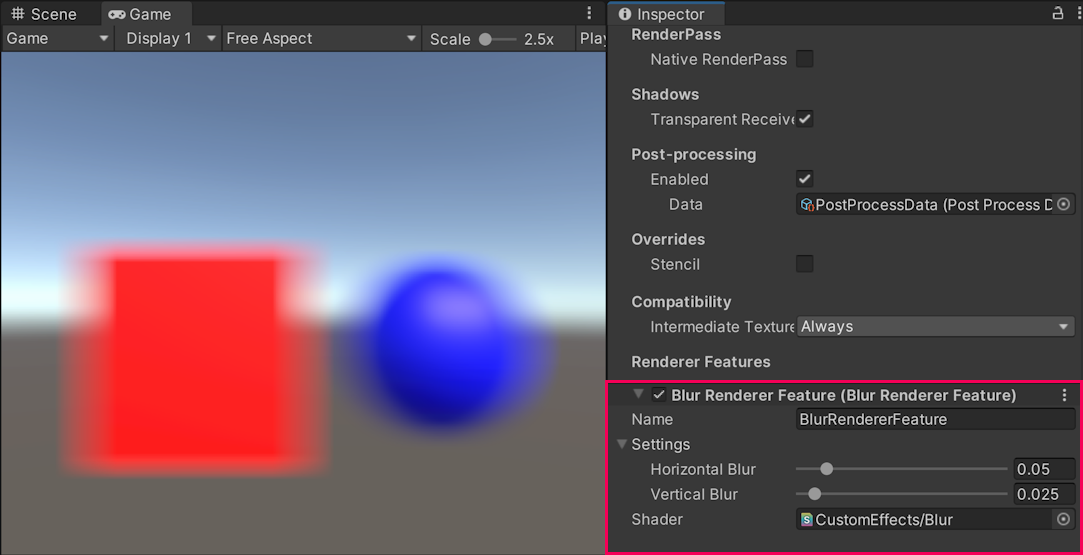
The effect of the Scriptable Renderer Feature in the Game view.
Implement the volume component
This section shows how to implement a volume component that lets you control the input values for the custom renderer feature.
-
Create a new C# script and name it
CustomVolumeComponent.cs. -
Inherit the
CustomVolumeComponentclass from theVolumeComponentclass, add the[Serializable]attribute to the class. Add theusing UnityEngine.Rendering;directive.using System; using UnityEngine.Rendering; [Serializable] public class CustomVolumeComponent : VolumeComponent { } -
Add the
BoolParameterfield to theCustomVolumeComponentclass. This field lets you enable or disable the custom renderer feature.public class BlurVolumeComponent : VolumeComponent { public BoolParameter isActive = new BoolParameter(true); } -
Add the fields to control the blur settings defined in the custom renderer feature.
[Serializable] public class CustomVolumeComponent : VolumeComponent { public BoolParameter isActive = new BoolParameter(true); public ClampedFloatParameter horizontalBlur = new ClampedFloatParameter(0.05f, 0, 0.5f); public ClampedFloatParameter verticalBlur = new ClampedFloatParameter(0.05f, 0, 0.5f); } -
In the
BlurRenderPassscript, change theUpdateBlurSettingsmethod so that it uses the settings defined in a Volume or the default settings if no Volume is set.private void UpdateBlurSettings() { if (material == null) return; // Use the Volume settings or the default settings if no Volume is set. var volumeComponent = VolumeManager.instance.stack.GetComponent<CustomVolumeComponent>(); float horizontalBlur = volumeComponent.horizontalBlur.overrideState ? volumeComponent.horizontalBlur.value : defaultSettings.horizontalBlur; float verticalBlur = volumeComponent.verticalBlur.overrideState ? volumeComponent.verticalBlur.value : defaultSettings.verticalBlur; material.SetFloat(horizontalBlurId, horizontalBlur); material.SetFloat(verticalBlurId, verticalBlur); } -
In the Unity scene, create a local Box Volume. If a Volume Profile is missing, create a new one by clicking New next to the Profile property. Add the
Custom Volume Componentoverride to the Volume.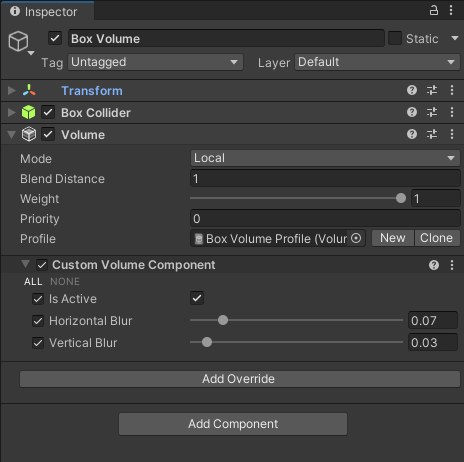
-
Enable the settings in the
Custom Volume Componentoverride and set the values for this Volume. Move the Volume so that the camera is inside it. The settings from the Volume override the default settings from the custom renderer feature.
All complete code for the scripts in this example
This section contains the complete code for all the scripts in this example.
Custom Renderer Feature code
Below is the complete code for the custom Renderer Feature script.
using System;
using UnityEditor;
using UnityEngine;
using UnityEngine.Rendering.Universal;
public class BlurRendererFeature : ScriptableRendererFeature
{
[SerializeField] private BlurSettings settings;
[SerializeField] private Shader shader;
private Material material;
private BlurRenderPass blurRenderPass;
public override void Create()
{
if (shader == null)
{
return;
}
material = new Material(shader);
blurRenderPass = new BlurRenderPass(material, settings);
blurRenderPass.renderPassEvent = RenderPassEvent.BeforeRenderingPostProcessing;
}
public override void AddRenderPasses(ScriptableRenderer renderer,
ref RenderingData renderingData)
{
if (renderingData.cameraData.cameraType == CameraType.Game)
{
renderer.EnqueuePass(blurRenderPass);
}
}
protected override void Dispose(bool disposing)
{
#if UNITY_EDITOR
if (EditorApplication.isPlaying)
{
Destroy(material);
}
else
{
DestroyImmediate(material);
}
#else
Destroy(material);
#endif
}
}
[Serializable]
public class BlurSettings
{
[Range(0, 0.4f)] public float horizontalBlur;
[Range(0, 0.4f)] public float verticalBlur;
}
Custom render pass code
Below is the complete code for the custom Render Pass script.
using UnityEditor;
using UnityEngine;
using UnityEngine.Rendering;
using UnityEngine.Rendering.RenderGraphModule;
using UnityEngine.Rendering.Universal;
public class BlurRenderPass : ScriptableRenderPass
{
private static readonly int horizontalBlurId = Shader.PropertyToID("_HorizontalBlur");
private static readonly int verticalBlurId = Shader.PropertyToID("_VerticalBlur");
private const string k_BlurTextureName = "_BlurTexture";
private const string k_VerticalPassName = "VerticalBlurRenderPass";
private const string k_HorizontalPassName = "HorizontalBlurRenderPass";
private static Vector4 m_ScaleBias = new Vector4(1f, 1f, 0f, 0f);
private BlurSettings defaultSettings;
private Material material;
private RenderTextureDescriptor blurTextureDescriptor;
public BlurRenderPass(Material material, BlurSettings defaultSettings)
{
this.material = material;
this.defaultSettings = defaultSettings;
blurTextureDescriptor = new RenderTextureDescriptor(Screen.width, Screen.height,
RenderTextureFormat.Default, 0);
}
private void UpdateBlurSettings()
{
if (material == null) return;
// Use the Volume settings or the default settings if no Volume is set.
var volumeComponent =
VolumeManager.instance.stack.GetComponent<CustomVolumeComponent>();
float horizontalBlur = volumeComponent.horizontalBlur.overrideState ?
volumeComponent.horizontalBlur.value : defaultSettings.horizontalBlur;
float verticalBlur = volumeComponent.verticalBlur.overrideState ?
volumeComponent.verticalBlur.value : defaultSettings.verticalBlur;
material.SetFloat(horizontalBlurId, horizontalBlur);
material.SetFloat(verticalBlurId, verticalBlur);
}
private class PassData
{
    internal TextureHandle src;
    internal Material material;
}
private static void ExecutePass(PassData data, RasterGraphContext context, int pass)
{
Blitter.BlitTexture(context.cmd, data.src, m_ScaleBias, data.material, pass);
}
public override void RecordRenderGraph(RenderGraph renderGraph,
ContextContainer frameData)
{
UniversalResourceData resourceData = frameData.Get<UniversalResourceData>();
UniversalCameraData cameraData = frameData.Get<UniversalCameraData>();
// The following line ensures that the render pass doesn't blit
// from the back buffer.
if (resourceData.isActiveTargetBackBuffer)
return;
// Set the blur texture size to be the same as the camera target size.
blurTextureDescriptor.width = cameraData.cameraTargetDescriptor.width;
blurTextureDescriptor.height = cameraData.cameraTargetDescriptor.height;
blurTextureDescriptor.depthBufferBits = 0;
TextureHandle srcCamColor = resourceData.activeColorTexture;
TextureHandle dst = UniversalRenderer.CreateRenderGraphTexture(renderGraph, blurTextureDescriptor, k_BlurTextureName, false);
// Update the blur settings in the material
UpdateBlurSettings();

// This check is to avoid an error from the material preview in the scene
if (!srcCamColor.IsValid() || !dst.IsValid())
    return;
// Vertical blur pass
using (var builder = renderGraph.AddRasterRenderPass<PassData>(k_VerticalPassName,
        out var passData))
{
    // Configure pass data
    passData.src = srcCamColor;
    passData.material = material;

    // Configure render graph input and output
    builder.UseTexture(passData.src);
    builder.SetRenderAttachment(dst, 0);

    // Blit from the camera color to the render graph texture,
    // using the first shader pass.
    builder.SetRenderFunc((PassData data, RasterGraphContext context) => ExecutePass(data, context, 0));
}
// Horizontal blur pass
using (var builder = renderGraph.AddRasterRenderPass<PassData>(k_HorizontalPassName, out var passData))
{
    // Configure pass data
    passData.src = dst;
    passData.material = material;

    // Use the output of the previous pass as the input
    builder.UseTexture(passData.src);

    // Use the input texture of the previous pass as the output
    builder.SetRenderAttachment(srcCamColor, 0);

    // Blit from the render graph texture to the camera color,
    // using the second shader pass.
    builder.SetRenderFunc((PassData data, RasterGraphContext context) => ExecutePass(data, context, 1));
}
}
}
Volume Component code
Below is the complete code for the Volume Component script.
using System;
using UnityEngine.Rendering;
[Serializable]
public class CustomVolumeComponent : VolumeComponent
{
    public BoolParameter isActive = new BoolParameter(true);
    public ClampedFloatParameter horizontalBlur =
        new ClampedFloatParameter(0.05f, 0, 0.5f);
    public ClampedFloatParameter verticalBlur =
        new ClampedFloatParameter(0.05f, 0, 0.5f);
}
The custom shader for the blur effect
This section contains the code for the custom shader that implements the blur effect.
Shader "CustomEffects/Blur"
{
    HLSLINCLUDE

        #include "Packages/com.unity.render-pipelines.universal/ShaderLibrary/Core.hlsl"
        // The Blit.hlsl file provides the vertex shader (Vert),
        // the input structure (Attributes), and the output structure (Varyings)
        #include "Packages/com.unity.render-pipelines.core/Runtime/Utilities/Blit.hlsl"

        float _VerticalBlur;
        float _HorizontalBlur;

        float4 BlurVertical (Varyings input) : SV_Target
        {
            const float BLUR_SAMPLES = 64;
            const float BLUR_SAMPLES_RANGE = BLUR_SAMPLES / 2;

            float3 color = 0;
            float blurPixels = _VerticalBlur * _ScreenParams.y;

            for(float i = -BLUR_SAMPLES_RANGE; i <= BLUR_SAMPLES_RANGE; i++)
            {
                float2 sampleOffset = float2 (0, (blurPixels / _BlitTexture_TexelSize.w) * (i / BLUR_SAMPLES_RANGE));
                color += SAMPLE_TEXTURE2D(_BlitTexture, sampler_LinearClamp, input.texcoord + sampleOffset).rgb;
            }

            return float4(color.rgb / (BLUR_SAMPLES + 1), 1);
        }

        float4 BlurHorizontal (Varyings input) : SV_Target
        {
            const float BLUR_SAMPLES = 64;
            const float BLUR_SAMPLES_RANGE = BLUR_SAMPLES / 2;

            UNITY_SETUP_STEREO_EYE_INDEX_POST_VERTEX(input);
            float3 color = 0;
            float blurPixels = _HorizontalBlur * _ScreenParams.x;
            for(float i = -BLUR_SAMPLES_RANGE; i <= BLUR_SAMPLES_RANGE; i++)
            {
                float2 sampleOffset =
                    float2 ((blurPixels / _BlitTexture_TexelSize.z) * (i / BLUR_SAMPLES_RANGE), 0);
                color += SAMPLE_TEXTURE2D(_BlitTexture, sampler_LinearClamp, input.texcoord + sampleOffset).rgb;
            }
            return float4(color / (BLUR_SAMPLES + 1), 1);
        }

    ENDHLSL

    SubShader
    {
        Tags { "RenderType"="Opaque" "RenderPipeline" = "UniversalPipeline"}
        LOD 100
        ZWrite Off Cull Off
        Pass
        {
            Name "BlurPassVertical"

            HLSLPROGRAM

            #pragma vertex Vert
            #pragma fragment BlurVertical

            ENDHLSL
        }

        Pass
        {
            Name "BlurPassHorizontal"

            HLSLPROGRAM

            #pragma vertex Vert
            #pragma fragment BlurHorizontal

            ENDHLSL
        }
    }
}